
介紹
This manual provides detailed instructions for the setup, operation, and troubleshooting of your Guermok USB C Video Capture Card. This device is designed to capture video and audio signals from various sources, including gaming consoles, tablets, and phones, for streaming, recording, and editing on your computer. It supports video input up to 4K@30Hz and output up to 2K@30Hz or 1080P@60Hz, featuring USB 3.0 for high-speed data transmission and PD100W fast charging for compatible USB-C devices.

Image: Guermok USB C Video Capture Card, showcasin其緊湊的設計和整合電纜。
包裝內容
請確認您的包裹中所有物品均齊全:
- 視頻捕捉設備
- 安裝指南
產品特點
- Super HD 2K@30FPS Output: Supports video input up to 4K@30Hz and backward compatibility with 2K@30Hz and 1080P@60Hz for video capture output.
- Uncompressed Video Quality: Delivers real-time, uncompressed video and audio, preserving original quality with ultra-low latency. Supports YUY2 and MJPEG video formats.
- PD100W功率傳輸: Equipped with PD 3.0 100W fast charging for stable power supply during extended use, allowing simultaneous streaming and charging of USB-C port devices.
- Portable Design & Efficient Heat Dissipation: Plug-and-play functionality with no additional drivers required. Features an aluminum alloy casing with heat dissipation holes for efficient cooling, ideal for portable use.
- 廣泛的兼容性: Compatible with Windows 8.1/10/11, macOS, Linux, and Android 5.0+ systems. Offers USB and Type-C 2-in-1 port for connection to PCs, laptops, tablets, in-car systems, and game consoles (VR, Switch, Steam, ROG Ally, Legion Go).

Image: Diagram illustrating the capture card's power delivery and connectivity features.
設定說明
一般連接
- Plug your source device (e.g., tablet, Switch) into the capture card via its USB-C input cable.
- Connect the capture card's output cable (USB-A or USB-C) to your computer.
- Ensure your source device is powered on and outputting a video signal.
- For devices requiring power, connect a PD charger to the capture card's PD port.
Connecting to Nintendo Switch or VR Headsets (e.g., Quest 3)
The Guermok USB C Video Capture Card supports direct connection to devices like the Nintendo Switch and VR headsets such as the Quest 3. For optimal performance and to enable video capture, ensure the source device is in charging mode or receiving power.
- 對於 Nintendo Switch: Connect the capture card to the Switch's USB-C port. Ensure the Switch is receiving power (e.g., via its original charger connected to the capture card's PD port) to enable video output.
- For Quest 3: Directly connect the capture card to the Quest 3's USB-C port. If using the USB-A/C port on the capture card, ensure the A/C port is connected to the Quest. If the connection is recognized as USB 2.0, try flipping the USB-C connector.
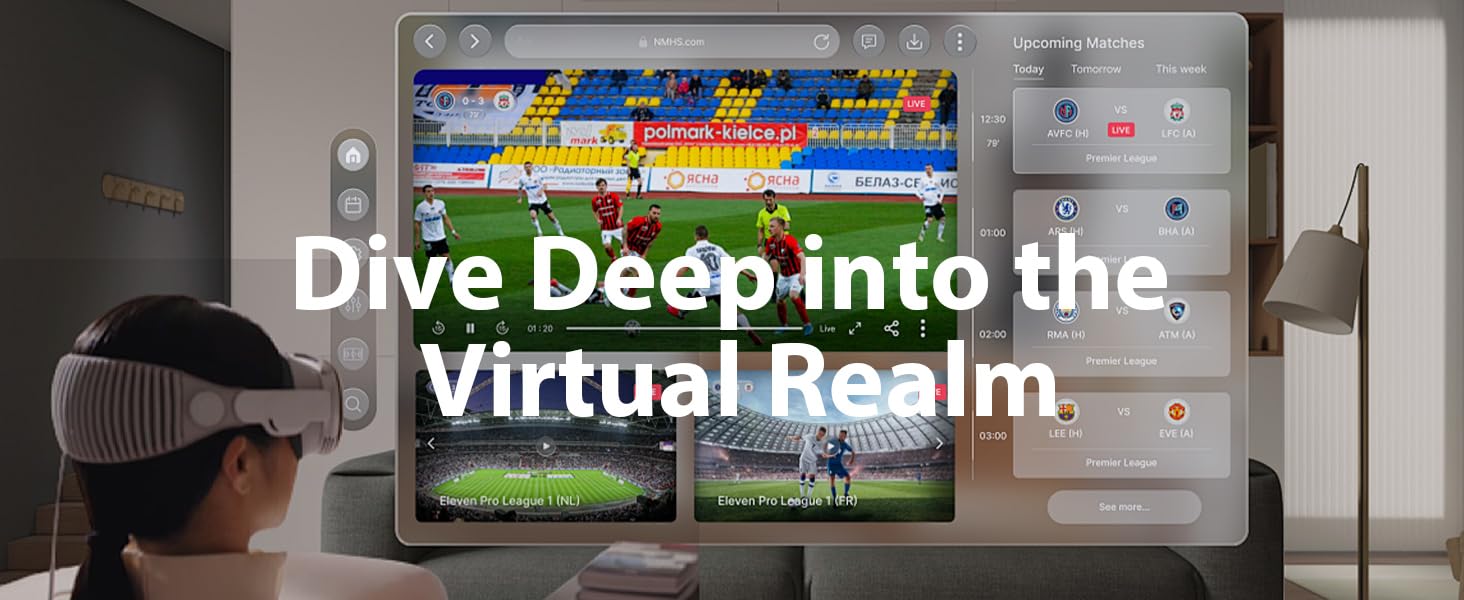
Image: Setup showing a phone connected to a laptop via the capture card, demonstrating simultaneous charging, gaming, and video capture.
Video: Guide to connecting Switch and Quest devices to the capture card. This video demonstrates the physical connection process for these specific devices.
Operating Instructions (OBS Studio)
This section outlines how to use the Guermok USB C Video Capture Card with OBS Studio for recording or streaming.
Adding a Video Source
- 打開OBS工作室。
- 在“來源”面板中,按一下“+' 圖示.
- 選擇 '視頻捕捉設備'.
- 選擇 '創造新的', give it a name (e.g., "Guermok Video Capture Card"), and click 'OK'.
- 在屬性視窗中,選擇“Guermok USB3 Video' from the 'Device' dropdown.
- To customize resolution and FPS, change 'Resolution/FPS Type' to '風俗'. Select '1920x1080' for Resolution and '60' for FPS. Choose 'MJPEG/YUY2' for Video Format.
- 點擊 'OK' to apply settings. You should now see the video preview.
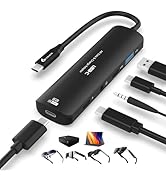
Image: Screenshot of OBS Studio showing the 'Add Source' menu with 'Video Capture Device' selected.
Adding an Audio Source
- 在“來源”面板中,按一下“+' 圖示.
- 選擇 '音訊輸入捕捉'.
- 選擇 '創造新的', give it a name, and click 'OK'.
- 在屬性視窗中,選擇“USB3 數位音訊' from the 'Device' dropdown.
- 點擊 'OK'.
Starting Recording or Streaming
- Once video and audio sources are configured, you can adjust their layout in the preview 窗戶。
- In the 'Controls' panel (bottom-right), click '開始串流' 或 '開始錄音'.
- Recordings are typically saved to the path specified in 'Settings' → 'Output' → 'Recording Path'.
Video: Guermok Capture Card Video and Audio Settings in OBS. This video provides a visual guide to configuring video and audio settings within OBS Studio.
Video: Streamlabs Desktop Operation Guide. This video demonstrates the steps for setting up and operating the capture card with Streamlabs Desktop.
維護
To ensure the longevity and optimal performance of your Guermok USB C Video Capture Card, follow these maintenance guidelines:
- 保持設備清潔,避免灰塵進入。清潔時請使用柔軟的乾布。
- 避免將設備暴露在極端溫度、陽光直射或高濕度下。
- 請勿嘗試拆卸或改裝設備,否則將導致保固失效。
- 不使用時,將設備存放在陰涼、乾燥的地方。
故障排除
If you encounter issues with your Guermok USB C Video Capture Card, please refer to the following common solutions:
- 無影片顯示:
- 請確保所有USB線連接牢固。
- Verify that the source device is powered on and actively outputting a video signal.
- For consoles (e.g., Switch, PS5, Xbox), ensure HDCP (High-bandwidth Digital Content Protection) is disabled in the console's settings.
- If using an adapter, try flipping the USB-C plug and reconnecting it.
- Device Recognized as USB 2.0 (instead of USB 3.0):
- Ensure the device is plugged into a USB 3.0 port on your computer.
- Check for updated USB 3.0 drivers for your computer's chipset.
- Unplug the capture card, restart your computer, and then reconnect the device.
- Power Management Settings (Windows): Go to Device Manager, locate the USB 3.0 controller, right-click, select "Properties," and under the Power Management tab, uncheck "Allow the computer to turn off this device to save power."
- 音訊問題:
- In OBS Studio, check the 'Audio Mixer' to ensure your capture card's audio input is active.
- Verify that 'USB3 Digital Audio' is selected as the input device in OBS.
- Check your computer's sound settings to ensure the correct input device is selected and not muted.
- 軟體相關問題:
- Try restoring the default settings in OBS Studio. Corrupted configuration files can cause recognition issues. After restoring, reactivate the capture device.
- Update OBS Studio to the latest version.
- 請確保您的作業系統和顯示卡驅動程式均為最新版本。
- 設備發熱: It is normal for the capture card to get slightly warm during use, especially during long sessions or when utilizing the PD charging feature. This is due to efficient heat dissipation through its aluminum casing.
規格
| 品牌 | 格爾莫克 |
| 型號 | Guermok_TV_TUNER_CARD |
| 硬體介面 | USB 3.0 |
| 視訊擷取分辨率 | 1080p (up to 2K@30FPS output, 4K@30Hz input) |
| 作業系統相容性 | Windows 8.1/10/11, macOS, Linux, Android 5.0 and above |
| 電力輸送 | PD 3.0 100W Fast Charging |
| 物品重量 | 3 盎司 |
| 產品尺寸 | 47.24 x 1.38 x 0.43 英寸 |
| 推薦用途 | Gaming Capture, Live Streaming, Video Recording |
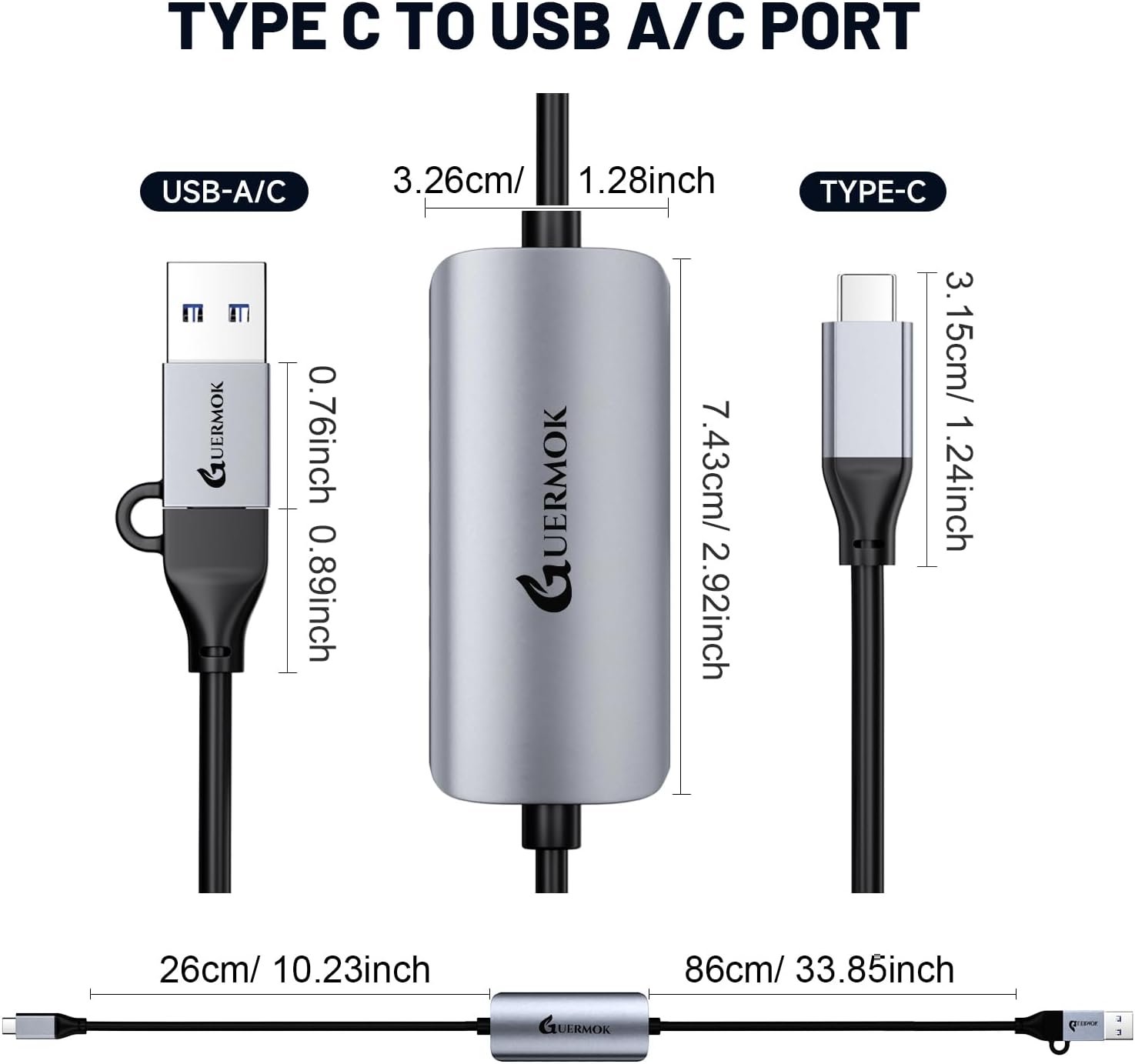
Image: Detailed diagram showing the dimensions of the Guermok USB C Video Capture Card.
保固和支持
Guermok is committed to providing high-quality products. While specific warranty details are not provided in this manual, please retain your proof of purchase for any warranty claims.
For technical support, troubleshooting assistance, or further inquiries, please contact Guermok customer service through the platform where you purchased the product or visit the official Guermok store online. You can find additional resources and contact information on the Guermok brand store page: Guermok Store.