
介紹
This manual provides detailed instructions for setting up, operating, maintaining, and troubleshooting your Generic C4000LZ xDSL Gigabit WiFi Modem Router. Designed for compatibility with Centurylink services, this device offers high-speed internet connectivity for both home and business environments. Please read this manual thoroughly before installation and use.
產品結束view
The C4000LZ is a compact and efficient modem router, designed to blend seamlessly into your environment while providing robust internet performance. It features a sleek, vertical design with essential ports located on the rear for a clean setup.
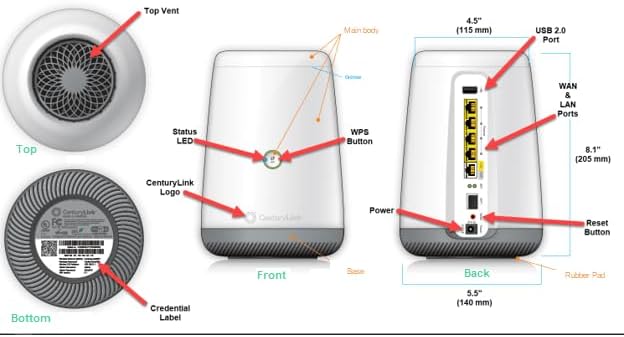
Figure 1: Detailed component diagram of the C4000LZ Modem Router.
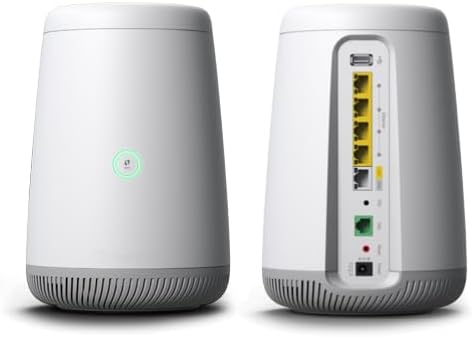
圖 2:正面和背面 views of the C4000LZ Modem Router.
關鍵部件:
- 狀態指示燈: 指示設備的運作狀態。
- WPS 按鈕: For quick and secure wireless connection setup.
- USB 2.0端口: 用於連接外部設備。
- 廣域網路和區域網路連接埠: 多個千兆乙太網路端口,用於有線連接。
- DSL連接埠: For connecting to your DSL line.
- 電源輸入: 用於連接電源轉接器。
- 重置按鈕: 恢復出廠預設值。
- 憑證標籤: Contains important network information (e.g., default Wi-Fi name and password).
設定
1. 開箱及放置:
- 小心地從包裝中取出所有組件。
- Place the modem router in a central location in your home or office, away from obstructions and other electronic devices that may cause interference. Ensure adequate ventilation.
2. Connecting the Modem Router:
- Connect the DSL cable from your wall jack to the DSL port on the back of the C4000LZ.
- If you plan to use wired devices, connect Ethernet cables from your computer or other network devices to the LAN ports on the back of the C4000LZ.
- Connect the power adapter to the Power Input port on the modem router and then plug it into an electrical outlet.
3. 初始配置:
- Allow a few minutes for the modem router to power on and initialize. The Status LED on the front will change color to indicate its status (typically green when ready).
- For Centurylink users, the device may automatically configure itself. If not, open a web browser on a connected device and follow the on-screen instructions for activation or refer to your Centurylink account information.
- Locate the Wi-Fi network name (SSID) and password on the Credential Label on the bottom of the device. Use these credentials to connect your wireless devices.
操作說明
無線網路連線:
- The C4000LZ supports dual-band Wi-Fi (2.4 GHz and 5 GHz) for optimal performance across various devices.
- Connect your devices to the appropriate Wi-Fi network. The 5 GHz band offers faster speeds over shorter distances, while the 2.4 GHz band provides better range.
WPS(Wi-Fi 保護設定):
- To connect a WPS-compatible device, press the WPS button on the front of the modem router.
- Within two minutes, activate WPS on your device. The device will automatically connect to the Wi-Fi network without needing to enter the password.
進階設定:
- To access advanced settings (e.g., port forwarding, parental controls, guest networks), open a web browser and enter the modem router's IP address (usually found on the Credential Label or in your Centurylink documentation).
- Log in using the administrator username and password (also on the Credential Label).
維護
- 保持通風: Ensure the modem router is placed in an area with good airflow to prevent overheating.
- 定期重啟: Periodically rebooting your modem router (unplugging for 30 seconds and plugging back in) can help resolve minor connectivity issues and improve performance.
- 固件更新: Check the manufacturer's or Centurylink's web本網站提供可用的韌體更新,以確保最佳效能和安全性。
- 打掃: Gently wipe the exterior with a soft, dry cloth. Avoid using liquid cleaners or abrasive materials.
故障排除
沒有網絡連接:
- Check all cable connections (DSL, Ethernet, Power) to ensure they are secure.
- Verify the Status LED. If it's not green, refer to the LED indicator guide in your Centurylink documentation or online resources.
- 重啟調變解調器路由器。
- Contact your internet service provider (Centurylink) if the issue persists.
Wi-Fi速度慢:
- Ensure your device is connected to the 5 GHz band if available and within close range.
- Reduce interference by moving the modem router away from other electronics (e.g., cordless phones, microwaves).
- Consider the number of devices connected. Too many active devices can reduce overall speed.
無法存取路由器設定:
- 請確保您的裝置已連接至路由器的網路(有線或無線連線均可)。
- Double-check the IP address and login credentials.
- 嘗試不同的 web 瀏覽器。
重設為出廠預設值:
- If all other troubleshooting steps fail, you may need to reset the modem router to its factory default settings.
- With the modem router powered on, use a paperclip or similar pointed object to press and hold the Reset Button for approximately 10-15 seconds until the lights flash.
- Note: Resetting will erase all custom settings, and you will need to reconfigure the device.
規格
| 特徵 | 細節 |
|---|---|
| 型號名稱 | C4000LZ |
| 品牌 | 通用的 |
| 製造商 | 合勤科技 |
| 產品尺寸 | 4 x 5 x 9 英寸 |
| 物品重量 | 2磅 |
| 連接技術 | 乙太網路 |
| 無線通信標準 | 802.11ac |
| 頻段類別 | 雙頻 |
| 特別報道 | WPS |
| 相容設備 | 個人電腦 |
| 推薦用途 | 商業、家庭 |
| 顏色 | 黑色或白色 |
| 天線類型 | 內部的 |
保固和支持
For warranty information and technical support, please refer to the documentation provided with your purchase or contact your internet service provider (Centurylink) directly. You may also visit the manufacturer's (Zyxel) website for additional resources and support options.