
一、簡介
This manual provides instructions for the MoKo Wireless RGB Backlight Chatpad Keyboard. This accessory is designed to enhance your gaming experience by providing a convenient way to type messages and navigate menus on compatible Xbox controllers.
包裝內容:
- 1x MoKo Wireless RGB Backlight Chatpad Keyboard
- 1 個 2.4G 接收器
- 1 本使用手冊

Image: Contents of the MoKo Wireless RGB Backlight Chatpad Keyboard package, including the keyboard, 2.4G receiver, and manual.
2、相容性
The MoKo Wireless RGB Backlight Chatpad Keyboard is compatible with the following Xbox controllers:
- Xbox One Controller
- Xbox One S Controller
- Xbox Series S Controller
- Xbox 系列 X 控制器
- Xbox Elite Controller
- Xbox Elite 2 Controller
Note: This keyboard is not compatible with Xbox One X controllers.

Image: Visual representation of compatible Xbox controllers, including Xbox One S, Xbox One, Xbox Series X, Xbox Series S, Xbox Elite, and Xbox Elite 2.
3. 設定與安裝
Follow these steps to install and connect your MoKo Wireless RGB Backlight Chatpad Keyboard:
- Connect Controller to Console: Ensure your Xbox controller is already connected and paired with your Xbox console.
- 準備控制器: If necessary, open the silicone cover on your controller and turn over the 3.5mm headphone jack to expose the expansion port.
- 連接鍵盤: Align the keyboard with the bottom of your Xbox controller and firmly press to attach it. The keyboard is designed for a precise and ergonomic fit.
- Insert 2.4G Receiver: Locate the 2.4G receiver (found in the top right of the keyboard or separately in the package) and insert it into an available USB port on your Xbox console.
- 配對: With the controller connected to the console and the keyboard attached, press the pairing key on the keyboard. The blue indicator light will glitter and turn off after successful pairing. For optimal pairing, ensure the console is within 0.5 meters of the keyboard during this step.

Image: Illustration showing an Xbox controller connected to a console.

Image: A hand opening the silicone cover on the controller to access the headphone jack.

Image: The chatpad keyboard being attached to the bottom of an Xbox controller.

Image: The 2.4G receiver being inserted into a USB port on an Xbox console.
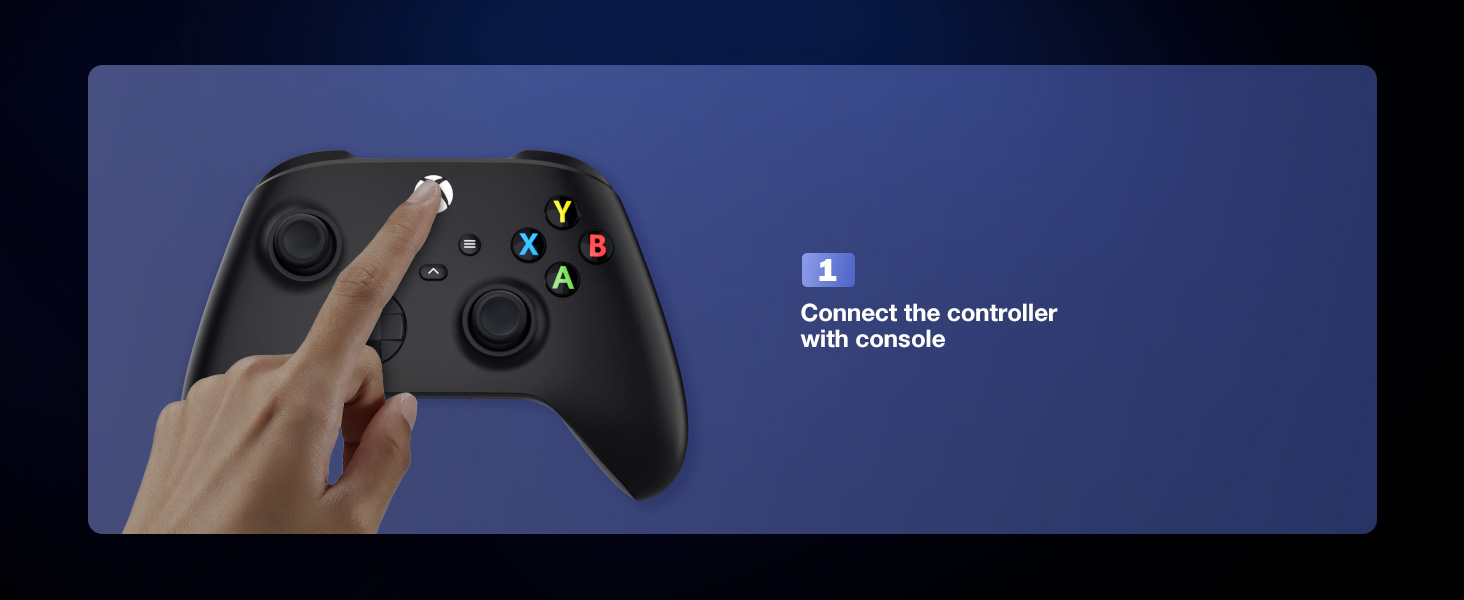
Image: A finger pressing the pairing key on the side of the chatpad keyboard.
Video: This video demonstrates the wireless connection and installation of the MoKo Chatpad Keypad for Xbox One controllers.
Video: This video highlights the ergonomic design and installation process of the MoKo Keyboard for Xbox One.
4. 操作說明
4.1 Basic Typing and Chat
The 47-key layout allows for quick and easy text input for chatting, messaging, and navigating menus. Simply press the desired keys to type.
4.2 RGB背光模式
The keyboard features three RGB backlight modes to enhance visibility and personalize your gaming setup. The backlight will automatically turn off if there is no operation within 10 seconds and will restore the previous mode upon reactivation.
- 彩虹呼吸模式: 按 Shift + Q to activate a dynamic rainbow color cycle.
- Trichrome Mode: 按 Shift + W for a three-color display across different key sections.
- 單色模式: 按 Shift + E to cycle through single-color backlighting. Further presses of Shift + R (Orange), Shift + T (綠色),或 Shift + Y (Pink/Purple) will select specific monochrome colors.
- 開啟/關閉燈: 按 Shift + 空白鍵 開啟或關閉背光。

Image: Demonstrates the three backlight modes: Rainbow Breathing Mode, Trichrome Mode, and Monochrome Mode.

Image: Close-up of the keyboard displaying the Rainbow Breathing Mode, activated by Shift + Q.

Image: Close-up of the keyboard displaying the Trichrome Mode, activated by Shift + W, showing three distinct color zones.

Image: Close-up of the keyboard displaying the Monochrome Mode, activated by Shift + E, with options for specific colors like orange, green, and pink/purple.
Video: This video demonstrates the newly upgraded MoKo Keyboard for Xbox, showcasing its features and backlight options.
Video: A short demonstration of the fantastic RGB backlight keyboard for Xbox One by MoKo, showing color changes.
Video: This video showcases the RGB backlight keyboard for Xbox One Controller by MoKo, demonstrating its various lighting effects.
4.3 音訊插孔的使用
The integrated 3.5mm audio jack allows you to connect headphones, earphones, or a headset directly to the keyboard for in-game audio and voice chat. Ensure your controller's power is above 20% for normal use, as the keyboard is powered by the Xbox controller.
5、維護保養
To ensure the longevity and optimal performance of your MoKo Wireless RGB Backlight Chatpad Keyboard, follow these simple maintenance guidelines:
- 打掃: 用柔軟的乾布擦拭鍵盤表面。若要頑固污漬,可稍微用力擦拭。amp 可以使用布,但要確保沒有水分進入設備。
- 貯存: 不使用時,請將鍵盤存放在陰涼乾燥處,避免陽光直射和極端溫度。
- 避免液體: 請勿將鍵盤暴露於水或其他液體中。
- 小心處理: 避免掉落鍵盤或使鍵盤受到強烈撞擊。
6。 故障排除
If you encounter issues with your MoKo Wireless RGB Backlight Chatpad Keyboard, please refer to the following common solutions:
- 鍵盤無響應:
- Ensure the 2.4G receiver is securely plugged into a USB port on your Xbox console.
- Verify that the keyboard is correctly attached to the controller.
- Re-attempt the pairing process (Section 3. Setup and Installation, Step 5).
- Check if your Xbox controller has sufficient battery charge (above 20%).
- 背光不工作:
- 請確保鍵盤已配對並連接。
- 按 Shift + 空白鍵 打開背光。
- The backlight turns off after 10 seconds of inactivity; press any key to reactivate.
- 無線連線不良:
- Ensure the console and keyboard are within the 10-meter valid range.
- Minimize obstructions between the receiver and the keyboard.
- 音訊插孔問題:
- Ensure your headset/earphones are fully plugged into the keyboard's 3.5mm jack.
- Confirm the controller has adequate power.
If these steps do not resolve your issue, please contact MoKo customer support for further assistance.
7. 規格
| 品牌 | 莫科 |
| 型號 | P723314151540 |
| 相容設備 | Xbox One, Xbox Series X/S, Xbox Elite, Xbox Elite 2 Controllers |
| 連接技術 | 2.4G無線 |
| 鍵盤類型 | Chatpad, Gaming |
| 背光顏色支持 | RGB (Rainbow Breathing, Trichrome, Monochrome) |
| 物品重量 | 2.17 盎司 |
| 產品尺寸(長x寬x高) | 5.59 x 2.13 x 1.65 英寸 |
| 電源 | Powered by Xbox Controller (No internal battery) |
8. 保固和支持
MoKo is committed to customer satisfaction. While specific warranty details are not provided in this manual, if you have any questions, concerns, or require assistance with your product, please do not hesitate to contact MoKo customer support. Your feedback is valuable and helps us improve our products and services.
For support, please refer to the contact information provided on the product packaging or the official MoKo web地點。