
一、簡介
The MARKLIFE P50 Label Maker Machine is a mini portable Bluetooth thermal label printer designed for a wide range of labeling needs. It utilizes thermal printing technology, supporting black and white printing, and is ideal for creating labels for addresses, clothing, jewelry, retail barcodes, small businesses, home organization, and office use. This manual provides comprehensive instructions for setting up, operating, and maintaining your P50 label maker.

Image: The MARKLIFE P50 label maker shown with different types of labels, including a "Thank You" label, a "Grapefruit Juice" label, and rolls of white gap, circle gap, and clear gap labels. An example label shows "Wireless Printer Built-in firewall SUPPORT WDS,WPS 123456".
2. 包裝內容
Upon unboxing your MARKLIFE P50 Label Maker, verify that all components are present:
- MARKLIFE P50 標籤機
- Labels (typically includes 3 tapes: 1.57"x1.18" white gap, 2"x2" circle gap, and 1.57"x0.79" transparent gap labels)
- USB-C 充電線
3. 設置指南
3.1 給設備充電
The P50 label maker features a built-in 1200mAh rechargeable battery for portable use. Before first use, ensure the device is fully charged.
- Connect the provided USB-C charging cable to the charging port on the label maker.
- 將連接線的另一端連接到相容的 USB 電源轉接器(不包含)或電腦的 USB 連接埠。
- The charging indicator light will show the charging status. Refer to the device's LED indicator guide for specific light behaviors (e.g., solid light for charging, off when fully charged).
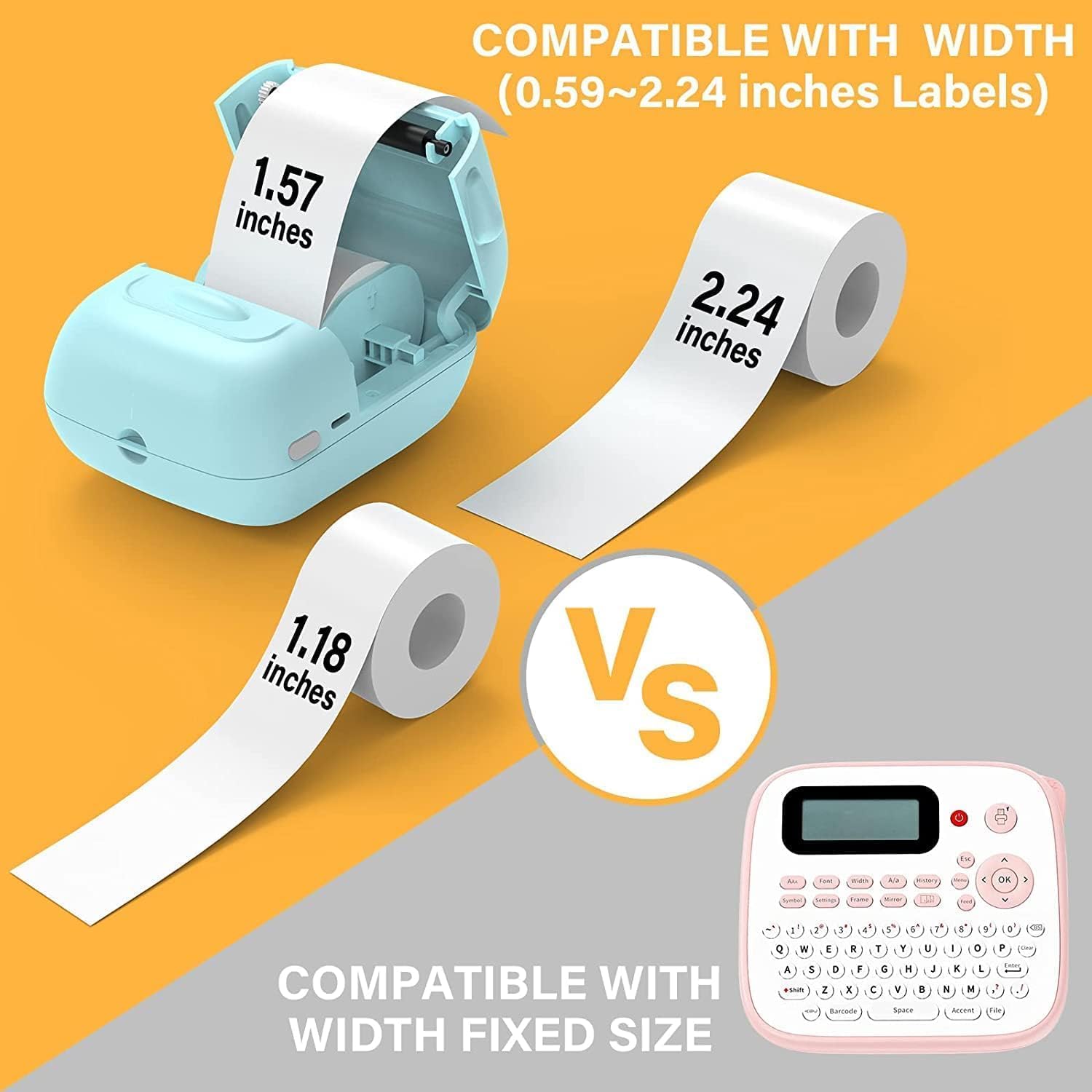
Image: A person placing the compact MARKLIFE P50 label maker into a handbag, highlighting its portability. Icons indicate "Portable", "Built-in 1200mAh Battery", and "Type-c Charging".
3.2 加載標籤
The P50 label maker supports label widths ranging from 0.59 inches to 2.24 inches. Ensure you use compatible thermal labels.
- 打開設備上的標籤盒蓋。
- Insert the label roll with the printing surface facing upwards, ensuring the roll is properly seated in the compartment.
- Pull a small portion of the label paper out of the slot, extending it slightly beyond the cutting edge.
- Close the label compartment cover firmly until it clicks into place. The printer will automatically detect the label size.

Image: Three rolls of labels are displayed, illustrating the different sizes available: 1.57"x0.78" (40x20mm) clear gap, 1.57"x1.18" (40x30mm) white gap, and 2"x2" (50x50mm) circle gap labels. The image emphasizes that these rolls "Meet More Needs".
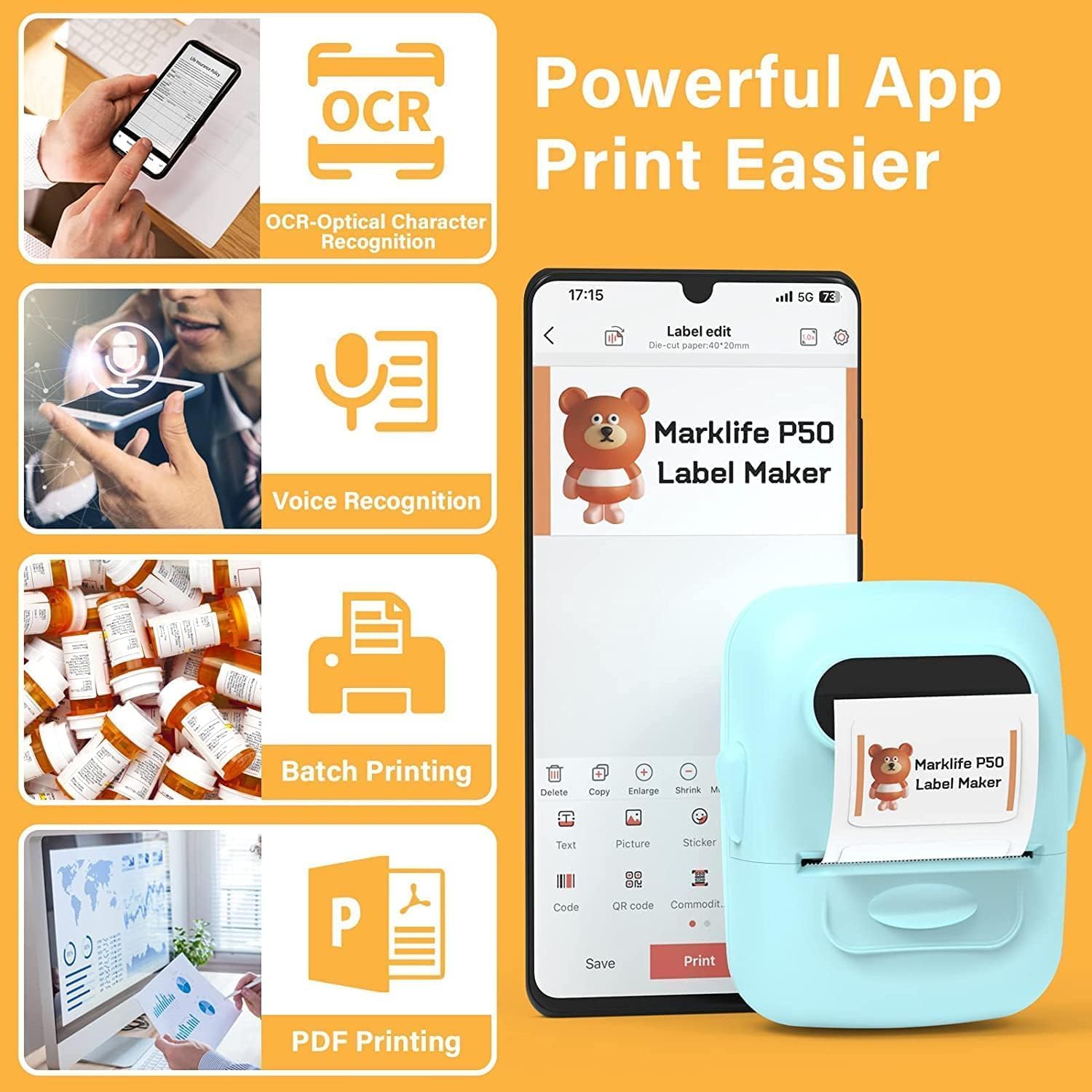
Image: The MARKLIFE P50 label maker is shown with a roll of labels, indicating compatibility with widths from 0.59 to 2.24 inches. It contrasts with a traditional label maker that has a fixed label size.
3.3 Connecting to Your Device (Smartphone/PC)
The P50 label maker offers wireless connectivity via Bluetooth for smartphones and USB connection for Windows PCs.
3.3.1 Smartphone Connection (Bluetooth)
- Download the "Marklife" application from your smartphone's app store (available for Android and iOS).
- 確保您的智能手機上已啟用藍牙。
- Turn on the P50 label maker.
- Open the Marklife app. The app will automatically search for and connect to the label maker via Bluetooth 4.0 within approximately 33 feet.
3.3.2 電腦連線(USB)
For Windows PC users, online software is available. Refer to the official MARKLIFE website or the app's help section for download and installation instructions for the PC software.
4. 操作說明
4.1 Marklife App Features
The Marklife app provides a powerful and user-friendly interface for label creation:
- OCR(光學字元辨識): Scan text from images to convert it into editable text for your labels.
- 語音識別: Convert spoken words into text for quick label input.
- 批量打印: Print multiple copies of the same label efficiently.
- PDF Printing: Print labels directly from PDF documents.
- 圖片插入: Insert your own photos or images onto labels.
- 條碼/二維碼產生: Scan existing barcodes to generate new ones or create custom QR codes.
- 模板: Access a variety of pre-designed templates for different label types (clothing, price, cable, jewelry, address, ingredients, etc.).

Image: The MARKLIFE P50 label maker is shown printing a long strip of barcode labels, demonstrating its "Batch Printing" capability. An example barcode shown is "123456".

Image: A smartphone screen displays the Marklife app interface, highlighting features such as OCR (Optical Character Recognition), Voice Recognition, Batch Printing, and PDF Printing. The P50 label maker is shown next to the phone, printing a label.
4.2 建立和列印標籤
- 設計您的標籤: Open the Marklife app and select a template or start a new design. Use the various editing tools to add text, images, barcodes, and other elements.
- 調整設定: Before printing, you can adjust print density and photo quality settings within the app to enhance the print job.
- 列印: Once your design is complete, tap the "Print" button in the app. The label maker will quickly print your label.
- 剪切標籤: Manually tear or cut the printed label from the printer's output slot.

Image: The MARKLIFE P50 label maker is shown printing a clothing tag with "NAME DRESS SIZE:16S/64A PRICE: $7.00" and a barcode "0123456789005". Other examples include labels on handmade soap and bakery items, demonstrating diverse applications.
5、維護保養
Proper maintenance ensures the longevity and optimal performance of your MARKLIFE P50 Label Maker.
- 清潔印字頭: 定期用柔軟、不起毛的布輕輕擦拭熱敏印表機頭。ampened with isopropyl alcohol. Ensure the device is off and cool before cleaning.
- 清潔外部: Wipe the exterior of the device with a soft, dry cloth. Avoid using abrasive cleaners or solvents.
- 標籤儲存: Store thermal labels in a cool, dry place away from direct sunlight and heat to prevent premature fading or damage.
- 電池保養: For long-term storage, charge the battery to about 50% and store in a cool, dry place. Recharge every few months to maintain battery health.
6。 故障排除
If you encounter issues with your P50 label maker, refer to the following common problems and solutions:
| 問題 | 可能的原因 | 解決方案 |
|---|---|---|
| 印表機無法開機。 | 電池電量低或沒有充電。 | Connect the device to a power source using the USB-C cable and charge it. |
| 無法透過藍牙連線。 | Bluetooth is off on phone, app not open, or printer is too far. | Ensure Bluetooth is enabled on your phone, the Marklife app is open, and the printer is within 33 feet. Restart both devices if necessary. |
| Labels are blank or faded. | Label roll inserted incorrectly (upside down) or print head is dirty. | Re-insert the label roll with the printing surface facing up. Clean the thermal print head as described in the Maintenance section. |
| Labels are misaligned or partially printed. | Label roll not properly seated or sliding within the compartment. | Open the label compartment, ensure the roll is pushed to the right and seated firmly. Close the cover. The printer should auto-calibrate. If issues persist, try re-calibrating via the app if available. |
| App crashes or requires frequent restarts for printing. | Software glitch or app cache issue. | Force close the Marklife app and reopen it. Clear the app's cache or reinstall the app if the problem persists. Ensure your phone's operating system is up to date. |
7. 規格
| 特徵 | 細節 |
|---|---|
| 品牌 | 馬克生活 |
| 型號名稱 | P50 LABEL PRINTER |
| 印刷技術 | 熱的 |
| 連接技術 | 藍牙、USB |
| 最大介質尺寸 | 2 inches (compatible with 0.59" - 2.24" width labels) |
| 最大黑白列印分辨率 | 300 dpi |
| 印表機輸出 | 單色(黑白) |
| 控制方式 | 應用(Android、iOS) |
| 特別報道 | Lightweight, Portable, Scan function via app |
| 物品重量 | 1.39磅 |
| 產品尺寸 | 4 英吋深 x 3 英吋寬 x 2 英吋高 |
| 電池 | Built-in 1200mAh (rechargeable via USB-C) |
8. 保固和支持
MARKLIFE products are manufactured to high-quality standards. For warranty information, technical support, or service inquiries, please contact MARKLIFE customer support directly. Details can typically be found on the official MARKLIFE website or within the Marklife application's help section.
請保留您的購買憑證,以便提出任何保固索賠。