
一、簡介
The Retro-Bit Prism HDMI Adapter is designed to enhance your GameCube gaming experience on modern displays. This adapter converts the GameCube's digital AV output to an HDMI signal, supporting up to 1080P resolution. It is specifically compatible with GameCube Model DOL-001, which features a dedicated Digital AV Out port.

Image 1.1: The Retro-Bit Prism HDMI Adapter, its remote control, and product packaging.
2. 產品結束view
2.1 主要特點
- GameCube Compatibility: Exclusively designed for GameCube Model DOL-001.
- HDMI輸出: Provides a digital video and audio signal for modern displays.
- Customizable On-Screen Display (OSD): Adjust video settings using the included IR remote.
- 固件更新: USB-C data port allows for easy firmware updates.
- Scan Filters: Includes various scan filter options for display customization.
- 即插即用設置: 安裝簡便,即刻可用。
2.2 組件

Image 2.1: Diagram illustrating the Digital AV Out connector, USB-C data port, HDMI output port, and Universal Remote Sync Button on the adapter, along with the included IR remote.
- Digital AV Out Connector: This connector plugs into the Digital AV Out port on the back of your GameCube Model DOL-001.

Image 2.2: Digital AV Out Connector.
- HDMI 輸出埠: Connects to your display via an HDMI cable (not included).

Image 2.3: HDMI Output Port.
- USB-C 數據端口: Used for installing firmware updates.

Image 2.4: USB-C Data Port.
- 紅外遙控器: For navigating the On-Screen Display and adjusting settings.

Image 2.5: IR Remote Control.
3. 設定說明
Follow these steps to connect your Retro-Bit Prism HDMI Adapter to your GameCube and display:
- Verify GameCube Model: Ensure your GameCube is Model DOL-001. This model has a Digital AV Out port next to the analog AV port on the back. The adapter is not compatible with later GameCube models (DOL-101) that lack this digital port.
- 連接適配器: Carefully insert the Digital AV Out Connector of the Prism HDMI Adapter into the Digital AV Out port on your GameCube.
- 連接 HDMI 線: Plug one end of an HDMI cable (not included) into the HDMI Output Port of the Prism adapter and the other end into an available HDMI input on your television or monitor.
- 開機: Power on your GameCube and your display. Select the correct HDMI input on your display.

Image 3.1: Plug-and-Play Setup diagram. The adapter connects to the GameCube's digital AV port, and an HDMI cable connects the adapter to a display.
重要提示:
The adapter extends from the back of the GameCube. To prevent potential stress or damage to the GameCube's Digital AV Out port, it is recommended to provide support for the adapter and the connected HDMI cable. This can be achieved using a small prop or a custom-made bracket.
4. 操作說明
4.1 On-Screen Display (OSD) and Remote Control
The included IR remote control allows you to access and navigate the adapter's On-Screen Display (OSD) to customize video settings. Use the directional buttons to navigate and the 'A' button (MENU/OK) to select options. The 'B' button (EXIT) is used to go back or exit the OSD.
Available settings may include:
- Scan filters (e.g., scanlines)
- Aspect ratio adjustments (e.g., 4:3, 16:9)
- Brightness, contrast, and color settings
4.2 Activating Progressive Scan (480p)
To achieve the highest possible picture quality (480p progressive scan) for compatible GameCube games, you must hold down the B 按鈕 on your GameCube controller while booting up a game. If the game supports 480p, you will be prompted to enable it. Select 'Yes' to activate progressive scan.
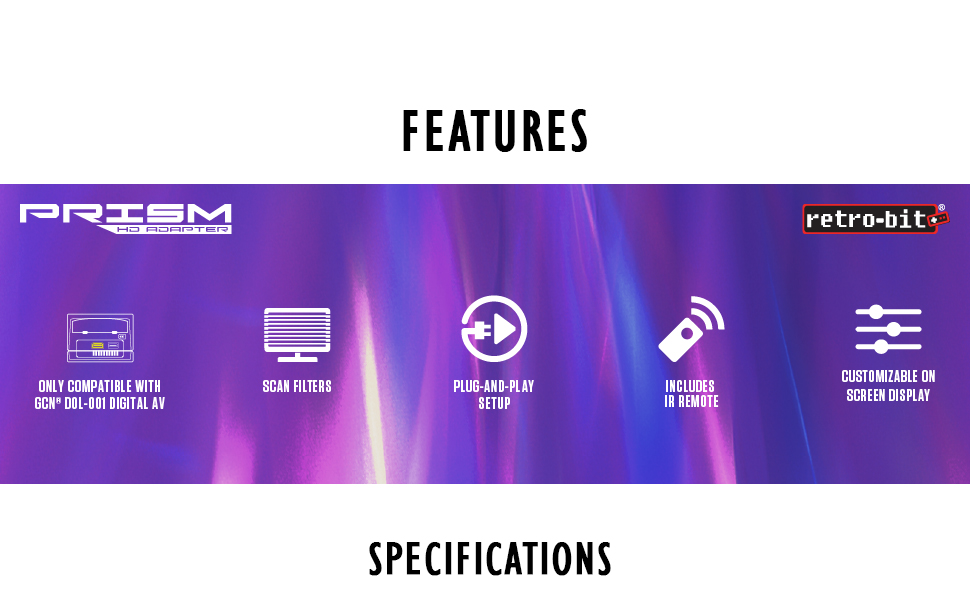
Image 4.1: Visual comparison demonstrating the improved clarity and detail when using HD 480p with Progressive Scan enabled compared to standard AV 480i Composite Video.
5、維護保養
5.1 固件更新
The Retro-Bit Prism HDMI Adapter features a USB-C data port for firmware updates. Periodically check the official Retro-Bit website for available firmware updates. These updates can provide performance improvements, bug fixes, and additional features. Follow the instructions provided on the Retro-Bit website for the specific update process.
6。 故障排除
- 螢幕上沒有顯示圖片:
- Ensure the GameCube is Model DOL-001.
- Verify the adapter is fully seated in the GameCube's Digital AV Out port.
- Check that the HDMI cable is securely connected to both the adapter and the display.
- 請確認您的顯示器已設定為正確的HDMI輸入來源。
- Try a different HDMI cable or display to rule out external issues.
- 圖片品質問題:
- Ensure Progressive Scan (480p) is activated for compatible games by holding the B button during game boot-up.
- Adjust settings via the OSD using the IR remote.
- Adapter Feels Loose or Causes Port Strain:
- As noted in the setup section, provide physical support for the adapter and HDMI cable to alleviate strain on the GameCube's Digital AV Out port.
7. 規格
| 特徵 | 細節 |
|---|---|
| 型號 | 849172013063 |
| 相容性 | Nintendo GameCube Model DOL-001 (with Digital AV Out port) |
| 輸出 | HDMI |
| 支援的分辨率 | Up to 1080P (GameCube native output is 480p for progressive scan compatible games) |
| 數據連接埠 | USB-C(用於韌體更新) |
| 方面 | 5.51 x 0.79 x 6.69 英寸 |
| 重量 | 1.44 盎司 |
| 製造商 | Retro-Bit |
| 發布日期 | 26 年 2021 月 XNUMX 日 |
8. 保固和支持
For warranty information, technical support, or further assistance with your Retro-Bit Prism HDMI Adapter, please visit the official Retro-Bit web您可以造訪網站或直接聯絡他們的客戶支援。請保留購買憑證以備保固索賠之用。