
KODAK CAR-P210RW
柯達 Mini 2 Retro 4PASS 便攜式照片印表機使用手冊
Model: CAR-P210RW | Brand: KODAK
一、簡介
The KODAK Mini 2 Retro 4PASS Portable Photo Printer is designed for convenient, high-quality photo printing directly from your smartphone or tablet. Its compact and lightweight design makes it an ideal companion for capturing and sharing memories on the go. Utilizing advanced 4PASS technology, this printer produces vibrant, durable photos that are resistant to fingerprints and water, ensuring your cherished moments last for generations.

Figure 1.1: The compact and portable KODAK Mini 2 Retro printer.
2. 包含的內容
Upon unboxing your KODAK Mini 2 Retro printer, please ensure all components are present:
- KODAK Mini 2 Retro Photo Printer
- 初始墨水匣(8 張)
- 60 Sheets of 2.1x3.4 inch Photo Paper (2x 30-sheet cartridges)
- 快速入門手冊
- USB-C Type Charging Cable (Note: Charging adapter not included)

Figure 2.1: Included items in the KODAK Mini 2 Retro package.
3. 設定
3.1 為印表機充電
Before initial use, fully charge your KODAK Mini 2 Retro printer using the provided USB-C cable. Connect the cable to the printer's charging port and a compatible USB power adapter (not included).
3.2 Loading the Photo Paper Cartridge
- 打開打印機側面的墨盒艙門。
- Insert a KODAK 2.1x3.4 inch cartridge into the slot. Ensure it is fully inserted.
- Push the cartridge in until you hear a distinct "click" sound, indicating it is securely locked in place.
- 關閉墨盒門。

Figure 3.1: Step 1 - Insert the paper.

Figure 3.2: Step 2 - Pull out & Push In.

Figure 3.3: Step 3 - Hear the "Click" Sound.
3.3 應用程式安裝和藍牙配對
Download the "Kodak Instant Printer" application from Google Play Store (for Android) or Apple App Store (for iOS). Once installed, enable Bluetooth on your smartphone/tablet and pair with the printer. The printer's product code for pairing can be found on the cartridge door.

Figure 3.4: Connecting the printer to your device via Bluetooth.
4. 操作印表機
4.1 印刷流程
Once connected via Bluetooth, open the Kodak Instant Printer app. Select the desired photo from your device's gallery. You can choose between border and borderless photo types. The printer uses 4PASS technology, applying colors in layers (Yellow, Magenta, Cyan) and then a protective laminate layer for superior quality and durability.

Figure 4.1: Understanding 4PASS technology for layered printing.

Figure 4.2: Comparison of image quality with 4PASS technology.
4.2 應用程式功能
The Kodak Photo Printer app offers various editing features to personalize your photos before printing. You can apply filters, adjust brightness and contrast, and add decorative frames or stickers. This allows for creative expression, perfect for scrapbooking or journaling.

圖 4.3:Examples of creative editing features available in the app.

Figure 4.4: Choose between borderless or bordered photo types.
4.3 官方產品視頻
Video 4.1: Official KODAK Mini 2 Retro User Guide. This video provides a comprehensive overview of the printer's features and operation, including setup, app usage, and printing demonstrations.
5、維護保養
The KODAK Mini 2 Retro printer utilizes 4PASS technology which includes a laminating process, making prints fingerprint-proof and water-resistant. This significantly reduces the need for extensive maintenance of the printed photos. For the printer itself, keep it clean and free from dust. Avoid exposing the printer to extreme temperatures or direct sunlight. When replacing cartridges, handle them carefully to prevent damage.
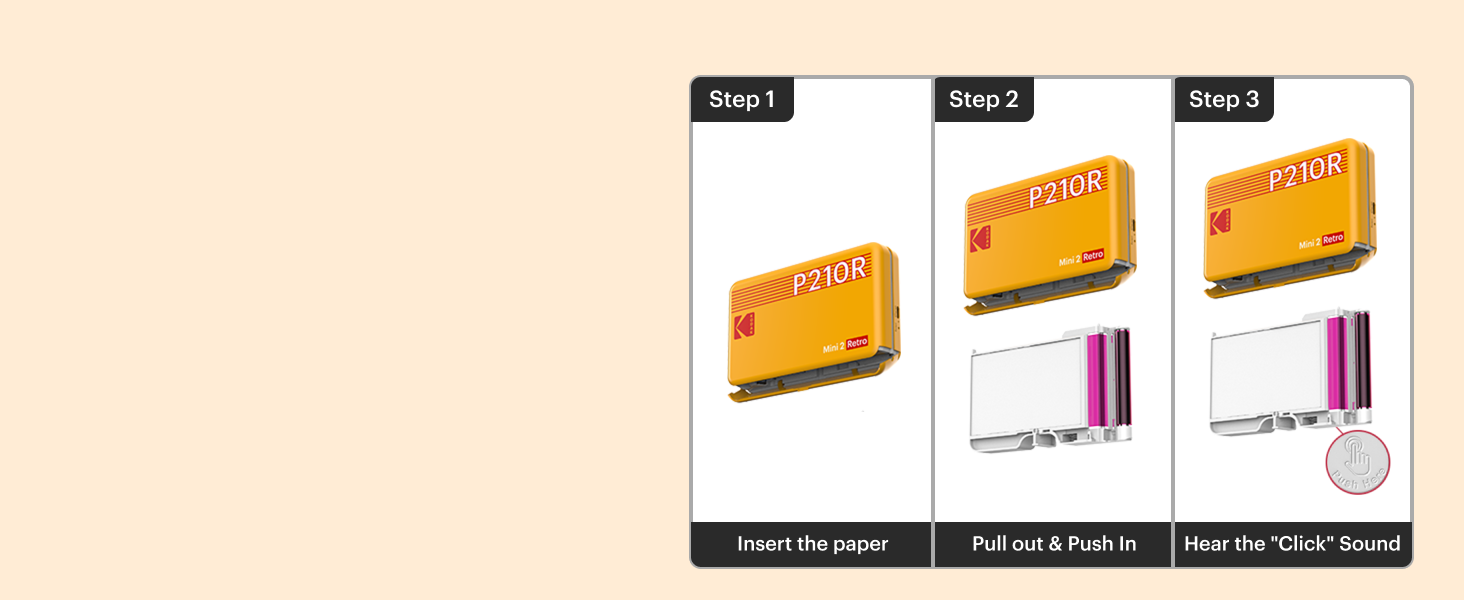
Figure 5.1: The 4PASS technology ensures prints are water-resistant and durable.
6。 故障排除
If you encounter issues with your KODAK Mini 2 Retro printer, consider the following common solutions:
- 印表機無法連線: Ensure Bluetooth is enabled on your device and the printer is powered on. Verify you are connecting to the correct product code in your device's Bluetooth settings.
- 打印質量差: Check if the photo cartridge is correctly inserted. Ensure the photo paper is not damaged or expired. Using original, high-resolution photos from your smartphone camera is recommended, as filtered or low-pixel images may result in lower print quality.
- 卡紙: Carefully open the cartridge door and remove any jammed paper. Ensure the cartridge is properly seated before closing the door and attempting to print again.
- 應用程式功能問題: Try restarting the app or your smartphone. Ensure the app is updated to the latest version.
7. 規格
| 特徵 | 規格 |
|---|---|
| 產品尺寸 | 3 英吋深 x 5 英吋寬 x 1 英吋高 |
| 物品重量 | 7.1盎司(200公克) |
| 型號名稱 | Mini 2 Retro |
| 型號 | CAR-P210RW |
| 連接技術 | 藍牙 |
| 印刷技術 | 熱昇華(4PASS) |
| 平面媒體 | 光面相紙 |
| 板材尺寸 | 2.1 x 3.4 英寸 |
| 最大輸入紙張容量 | 60 |
| 印表機輸出 | 顏色 |
| 最大列印速度(彩色) | 1 ppm |
| 相容設備 | 智慧型手機、平板電腦(iOS、Android) |
| 控制方式 | 應用程式 |
| 特色 | Portable, APP Control, Waterproof, Anti-Fingerprint |
8. 保固和支持
For detailed warranty information and further support, please refer to the official user manual provided with your product or visit the manufacturer's support website. A digital version of the user manual can be accessed via this link: KODAK Mini 2 Retro User Manual (PDF).
For customer service inquiries, please contact Kodak Photo Printer, the seller of this product.
Ask a question about this manual
Ask about setup, troubleshooting, compatibility, parts, safety, or missing instructions. Manuals+ will review the question and use this page’s manual context to help answer it.