
聯想L24q-30
Lenovo L24q-30 23.8-inch QHD Monitor User Manual
Model: L24q-30
一、簡介
This manual provides essential information for setting up, operating, and maintaining your Lenovo L24q-30 23.8-inch QHD monitor. The L24q-30 is designed to deliver a superior visual experience with its QHD (2560 x 1440) resolution, IPS panel, and >99% sRGB color gamut. It features AMD FreeSync technology, a 75Hz refresh rate, and a 4ms response time for smooth visuals. The monitor is TüV Eye Comfort certified, reducing blue light and flicker for extended viewing comfort. Connectivity options include HDMI 1.4 and DisplayPort 1.2, along with a 3.5mm audio output.
2. 安全訊息
Please read this section carefully before using your monitor to ensure safe and proper operation.
- 務必將顯示器放置在穩定、平坦的表面上,以防跌落。
- 確保顯示器周圍通風良好。請勿堵塞通風口。
- 請僅使用顯示器隨附的電源轉接器和線纜。
- 請勿將顯示器暴露在雨水或潮濕環境中,以免觸電。
- 清潔前從電源插座拔下顯示器插頭。
- 避免用鋒利的物體觸摸螢幕。
- If any unusual smoke, noise, or odor occurs, immediately unplug the monitor and contact customer support.
3. 包裝內容
確認包裹內所有物品齊全:
- Lenovo L24q-30 Monitor
- 顯示器支架底座
- 顯示器支架頸部
- 電源線
- HDMI 線
- Quick Setup Guide / Warranty Card
4. 設定
4.1 組裝顯示器支架
- Carefully remove the monitor from its packaging, placing it face down on a soft, clean cloth to protect the screen.
- 將支架頸部與顯示器面板對齊,然後推入直至其卡入到位。
- 將支架底座連接到支架頸部。用位於底座底部的固定螺絲將其固定。
- Gently lift the assembled monitor and place it upright on a stable surface.

圖 4.1:側面 view of the monitor with the stand attached, showing its slim profile.
4.2 連接線
Refer to the image below for port locations on the back of the monitor.
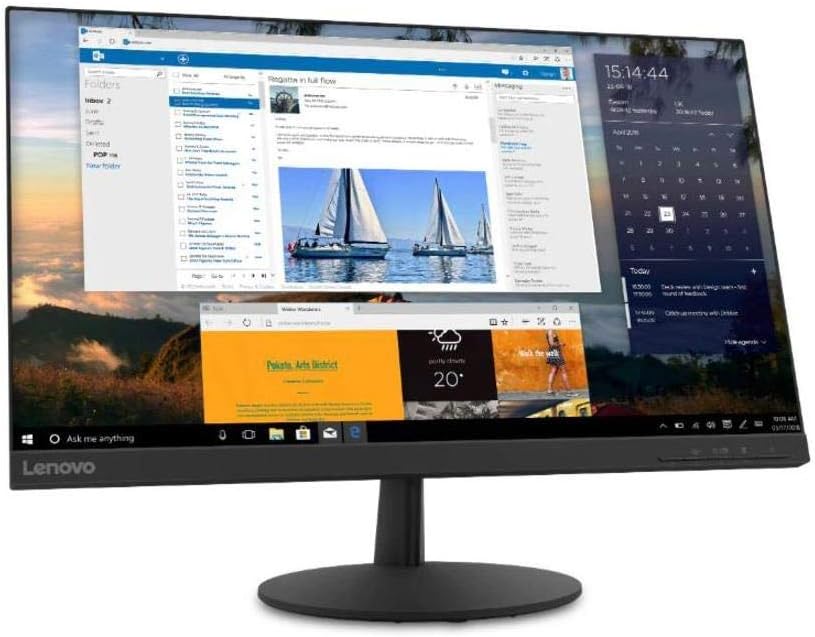
圖 4.2:背面 view of the monitor, highlighting the power input, HDMI, DisplayPort, and audio output ports.
- 電源連接: 將電源線連接到顯示器的電源輸入端口,然後將另一端插入接地的電源插座。
- 視頻連接:
- For HDMI: Connect one end of the HDMI cable to the monitor's HDMI port and the other end to the HDMI output port on your computer.
- For DisplayPort: Connect one end of the DisplayPort cable to the monitor's DisplayPort and the other end to the DisplayPort output on your computer.
- 音訊輸出(可選): If you wish to connect external speakers or headphones directly to the monitor, plug them into the 3.5mm audio out port.
4.3 初次上電
Press the power button located on the front or bottom bezel of the monitor. The power indicator light will illuminate. If no image appears, ensure all cables are securely connected and your computer is powered on.
5. 操作顯示器
5.1 螢幕顯示 (OSD) 控制
The monitor features control buttons, typically located on the bottom right bezel, to access and navigate the On-Screen Display (OSD) menu. These buttons allow you to adjust various monitor settings.
- 電源按鈕: 開啟或關閉顯示器。
- 選單按鈕: 開啟 OSD 選單。
- 導航按鈕(上/下/左/右): 用於瀏覽選單選項和調整數值。
- 確認/選擇按鈕: 確認選擇或進入子選單。
- 退出按鈕: 退出目前選單或返回上一關。
5.2 調整設定
調整顯示器設定:
- 按 選單 按下按鈕開啟 OSD。
- Use the navigation buttons to select a category (e.g., Picture, Color, Input).
- 按 輸入/選擇 to enter the category.
- Use navigation buttons to adjust values (e.g., Brightness, Contrast, Color Temperature) or select sub-options.
- 按 輸入/選擇 確認更改。
- 按 出口 離開 OSD 選單。
5.3 Activating AMD FreeSync
To utilize AMD FreeSync technology, ensure your graphics card supports FreeSync and that it is enabled in your graphics card's control panel. Then, navigate to the OSD menu on your monitor, typically under a 'Gaming' or 'Display' section, and enable the FreeSync option.
5.4 調整刷新率
The monitor supports a 75Hz refresh rate. To set this, you may need to adjust the display settings within your operating system (e.g., Windows Display Settings or macOS System Preferences) after connecting the monitor. Select the highest available refresh rate for optimal performance.
6、維護保養
6.1 清潔顯示器
- 螢幕: 用柔軟的無絨布輕輕擦拭螢幕。若要頑固污漬,請輕輕擦拭。amp用清水或不含氨、不含酒精的螢幕清潔劑擦拭抹布。切勿將清潔劑直接噴灑在螢幕上。
- Casing: 用柔軟的乾布擦拭顯示器。asing. 避免使用研磨性清潔劑或溶劑。
- 清潔前務必拔掉顯示器電源插頭。
6.2 儲存
如果需要長時間存放顯示器,請斷開所有連接線,並盡可能將其裝回原包裝盒中。存放在陰涼乾燥處,避免陽光直射和極端溫度。
7。 故障排除
如果您遇到顯示器問題,請參考以下常見問題和解決方案:
| 問題 | 可能的解決方案 |
|---|---|
| 無電源/電源指示燈熄滅 | Ensure the power cable is securely connected to both the monitor and the electrical outlet. Check the power outlet with another device. |
| 無影像/“無訊號”訊息 | Verify the video cable (HDMI/DisplayPort) is securely connected to both the monitor and the computer. Ensure the correct input source is selected in the OSD menu. Check if the computer is powered on and not in sleep mode. |
| 影像模糊或扭曲 | Ensure the monitor's native resolution (2560x1440) is selected in your computer's display settings. Adjust brightness, contrast, and sharpness settings in the OSD menu. |
| 屏幕閃爍 | Check the video cable for damage or loose connections. Ensure the refresh rate is set correctly (75Hz). Disable FreeSync temporarily to see if it resolves the issue. |
| 顏色不正確 | Adjust color settings (Color Temperature, Gamma) in the OSD menu. Reset color settings to factory defaults. |
8. 規格
| 特徵 | 細節 |
|---|---|
| 型號名稱 | 聯想L24q-30 |
| 螢幕尺寸 | 23.8英寸 |
| 面板類型 | IPS(面內切換) |
| 解決 | 四高清 (2560 x 1440) |
| 縱橫比 | 16:9 |
| 重新整理率 | 75赫茲 |
| 回應時間 | 4毫秒 |
| 色域 | > 99% sRGB |
| 動態對比度 | 3M:1 |
| View中角 | 178°(水平/垂直) |
| 連接性 | 1 個 HDMI 1.4 接口,1 個 DisplayPort 1.2 接口,1 個音訊輸出接口(3.5 毫米) |
| VESA 安裝兼容性 | 100 毫米 x 100 毫米 |
| 眼部舒適度認證 | TüV Rheinland Eye Comfort |
| 尺寸(含支架) | Approx. 21 x 38 x 49 inches (W x D x H) - Note: These dimensions may refer to packaging. Refer to product documentation for exact monitor dimensions. |
| 重量(含支架) | Approx. 1 pound - Note: This weight appears to be incorrect for a monitor. Refer to product documentation for exact weight. |
| 顏色 | 黑色的 |
9. 保固和支持
For detailed warranty information, please refer to the warranty card included in your product package or visit the official Lenovo support web本網站。保固範圍涵蓋正常使用條件下的製造缺陷。
For technical support, driver downloads, or service inquiries, please visit the Lenovo Support website or contact their customer service department. Have your monitor's model number (L24q-30) and serial number ready when contacting support.
聯想支持 Web地點: 支持.lenovo.com