
DIGITNOW m126
DIGITNOW 22MP All-in-1 Film & Slide Scanner
使用者手冊
一、簡介
This manual provides detailed instructions for the operation and maintenance of your DIGITNOW 22MP All-in-1 Film & Slide Scanner (Model m126). This device is designed to convert various film and slide formats, including 35mm, 135, 110, 126, and Super 8 films/slides/negatives, into high-quality digital JPG photos. Please read this manual thoroughly before use to ensure proper functionality and to maximize the lifespan of your scanner.
2. 包裝內容
確認您的包裹含有下列所有物品:
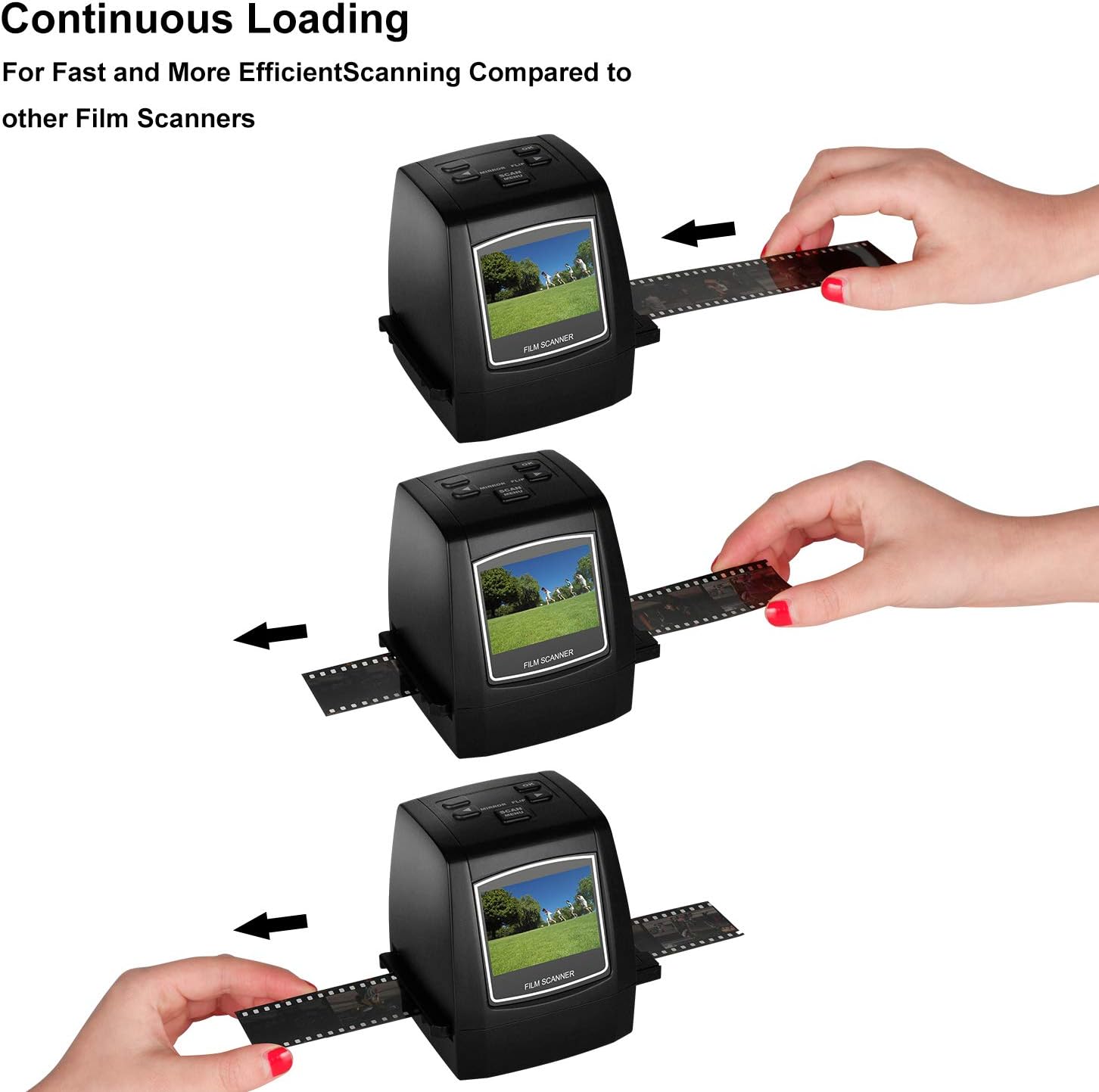
Image: All components included in the DIGITNOW Film & Slide Scanner package.
- DIGITNOW 22MP All-in-1 Film & Slide Scanner
- 100-240V 交流適配器
- USB線
- 使用者手冊
- 負片架
- 載玻片支架
- Super 8 Film Holder
- 110 膠片夾
- 清潔刷
3.產品特點
- Converts 35mm/135, 110, 126KPK and Super 8 films, Slides & Negatives into digital JPEG format within 1 to 2 seconds.
- Stand-Alone operation, no computer required. Transfer old film/slides to Color or Black&White pictures in an SD card (up to 32GB, not included) and adjust the brightness or color of the image directly on the device.
- Mac & PC Compatible. Easily transfer high-resolution images to your computer, laptop, smartphone, and tablet.
- With software interpolation, digitized photo quality can reach up to 22 Megapixels.
- View scanned photos directly on the integrated 2.4” color LCD screen, or connect it to a TV for a larger display.
4. 零件說明

圖片:正面 view of the scanner, showing the 2.4-inch LCD screen and control buttons.

圖片:後視圖 view of the scanner, highlighting the SD card slot, USB port, and TV Out port.
控制按鈕:
- 電源按鈕: Turns the scanner ON/OFF.
- 確定按鈕: 確認選擇或拍攝影像。
- 左/右箭頭: 瀏覽選單或調整設定。
- Mirror/Flip Button: Flips or mirrors the image during preview.
- Scan/Menu Button: Initiates scanning or accesses the main menu.
連接埠和插槽:
- SD 卡插槽: Insert an SD card (up to 32GB, not included) for saving scanned images.
- USB連接埠: 連接到電腦以進行資料傳輸或供電。
- 電視輸出埠: Connects to a TV for larger display of images.
5. 設定
- 電源連接: Connect the provided AC adapter to the scanner's USB port and plug it into a power outlet. Alternatively, connect the scanner to a computer's USB port using the supplied USB cable.
- 插入SD卡: Insert an SD card (not included) into the SD card slot on the back of the scanner. Ensure it is inserted correctly until it clicks into place.
- 開機: Press the Power button to turn on the scanner. The LCD screen will light up.
6. 操作說明
6.1 支援的膠片和幻燈片類型

Image: Visual representation of the various film and slide formats compatible with the scanner.
6.2 掃描膠片和幻燈片
Follow these steps to digitize your films and slides:
- 選擇膠片類型: From the main menu, use the arrow buttons to navigate to the 'Capture' mode. Press OK. Then, select the appropriate film type (e.g., 35mm Negative, 135 Slide, Super 8, 110, 126) using the arrow buttons and press OK to confirm.
- Insert Film/Slide Holder: Insert the correct film or slide holder into the slot on the side of the scanner. Ensure it slides in smoothly.
- Load Film/Slide: Carefully load your film strip or slide into the designated slot on the holder. For film strips, ensure the film is flat and properly aligned. For slides, place them securely in the slide holder.
- 預view 影像: The image from your film or slide will appear on the 2.4-inch LCD screen. You can use the 'Mirror/Flip' button to adjust the orientation if needed.
- 調整設置(可選): Press the 'Scan/Menu' button to access settings like exposure compensation (brightness) or color balance (Red, Green, Blue). Use the arrow buttons to adjust and OK to confirm.
- 掃描影像: Once the image looks satisfactory, press the 'OK' button to capture and save the digital photo to the inserted SD card.
- 連續掃描: For film strips, gently pull the film through the holder to the next frame and repeat the scanning process.

Image: Demonstration of continuous film loading for efficient scanning.
6.3 視訊演示
Watch this official product video for a visual guide on unboxing, setting up, and operating the DIGITNOW Film & Slide Scanner:
Video: A comprehensive guide demonstrating the unboxing, setup, and scanning process of the DIGITNOW Film & Slide Scanner. This video covers inserting film/slides, adjusting settings, and capturing digital images.
7、維護保養
To ensure optimal performance and longevity of your scanner, follow these maintenance tips:
- 清潔鏡頭: Use the provided cleaning brush to gently remove any dust or debris from the scanner's lens and film slot. Do not use liquid cleaners or abrasive materials.
- 外部清潔: 用柔軟的乾布擦拭掃描器外部。
- 貯存: 不使用時,請將掃描器存放在陰涼乾燥處,避免陽光直射和極端溫度。
8。 故障排除
| 問題 | 可能的原因 | 解決方案 |
|---|---|---|
| 掃描器無法開機。 | 電源連接故障或適配器故障。 | Ensure the AC adapter is securely connected to the scanner and a working power outlet. Try a different USB port or power outlet. |
| Image appears dark or discolored. | Incorrect exposure/color settings or dirty lens. | Adjust exposure compensation and color balance settings in the menu. Clean the scanner lens with the provided brush. |
| Cannot save images to SD card. | SD card full, not inserted correctly, or corrupted. | Check if the SD card has enough free space. Reinsert the SD card. Try a different SD card. Format the SD card (this will erase all data). |
| Film/slide not recognized or blurry. | Incorrect film holder or improper loading. | Ensure you are using the correct film/slide holder for your media type. Make sure the film/slide is inserted flat and correctly aligned within the holder. |
9. 規格
| 特徵 | 細節 |
|---|---|
| 產品尺寸 | 3.2 x 3.2 x 4 英吋(4.03 英吋深 x 3.42 英吋寬 x 4.03 英吋高) |
| 物品重量 | 9.6 盎司(0.6 磅) |
| 型號 | m126 |
| 媒體類型 | 底片、幻燈片、照片 |
| 掃描器類型 | 電影 |
| 連接技術 | USB |
| 解決 | 7200 DPI (Interpolated to 22MP) |
| 光學傳感器技術 | 互補金屬氧化物半導體 |
| 最低系統需求 | Windows 7(用於PC連線) |
| 內建記憶體 | 128MB |
| 液晶螢幕 | 2.4 inches Color LCD |
| 支援的膠片類型 | 35mm/135, 110, 126KPK, Super 8 Films/Slides/Negatives |
10. 保固和支持
For warranty information and technical support, please refer to the contact details provided on the product packaging or the official DIGITNOW web網站。請保留您的購買收據,作為任何保固索賠的購買憑證。
Ask a question about this manual
Ask about setup, troubleshooting, compatibility, parts, safety, or missing instructions. Manuals+ will review the question and use this page’s manual context to help answer it.