
一、簡介
This manual provides essential instructions for the safe and efficient use of your Epson LQ-310 24-Pin Narrow Carriage Impact Printer. Please read this manual thoroughly before operating the printer and keep it for future reference.
The Epson LQ-310 is a compact and reliable dot matrix printer designed for fast and efficient printing of various documents, including multi-part forms, invoices, and reports. It features versatile connectivity options including USB, Serial, and Parallel ports.
2. 安全訊息
Observe the following safety precautions to ensure safe operation and to prevent damage to the printer or injury to yourself.
- 請務必將印表機放置在穩定、平坦的表面上。
- 請勿堵塞或遮蓋印表機上的通風槽。
- 請僅使用印表機隨附的電源線。
- Do not expose the printer to water, moisture, or excessive heat.
- 清潔或進行維護前,請先將印表機從電源插座拔下。
- 請將本品放在兒童接觸不到的地方。
3. 包裝內容
確認包裹內所有物品齊全:
- Epson LQ-310 Printer Unit
- 電源線
- 色帶盒
- 用戶手冊(本文檔)
- Driver CD (may vary by region)
4. 設定
4.1 開箱及放置
- 從包裝中取出印表機。
- 移除所有保護膠帶和包裝材料。
- 將印表機放置在通風良好的平坦、穩定的表面上。
4.2 連接電源線
將電源線連接到印表機,然後再連接到接地的電源插座。
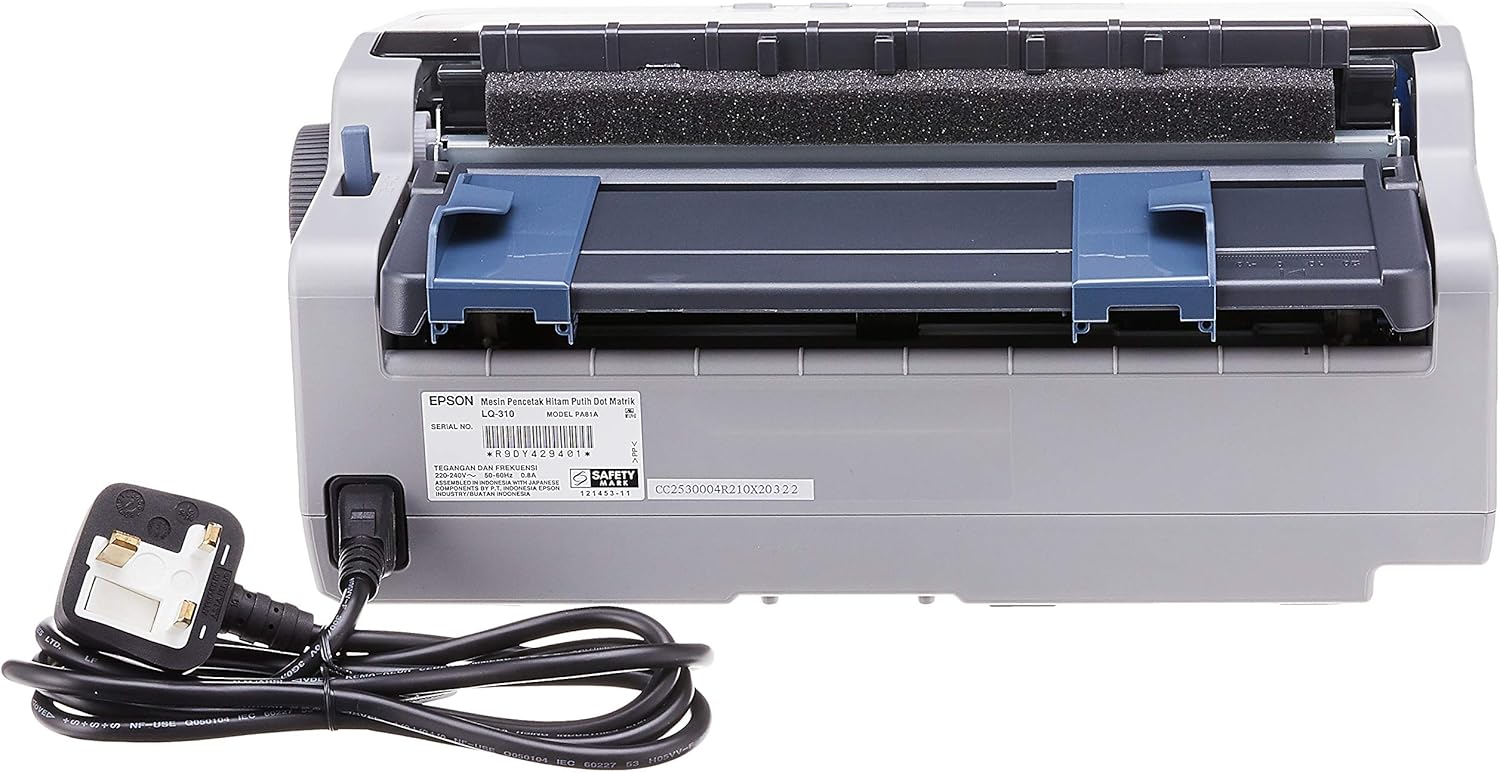
圖4.2.1: 後部 view of the Epson LQ-310 printer, highlighting the power input and various data ports (USB, Serial, Parallel) for connection to a computer.
4.3 連接到計算機
The LQ-310 supports USB, Serial, and Parallel connections. Choose the appropriate cable for your computer and connect it to the corresponding port on the printer.
- USB 連接: Use a standard USB A-B cable.
- 串行連接: Use a serial cable (RS-232C).
- 並聯: Use a parallel cable (Centronics).
4.4 安裝色帶盒
- 確保印表機已關閉。
- 打開印表機蓋。
- Unpack the new ribbon cartridge.
- Align the ribbon cartridge with the guides inside the printer and press down firmly until it clicks into place.
- Turn the ribbon feed knob on the cartridge to ensure the ribbon is taut and not twisted.
- 關閉印表機蓋。

圖4.4.1: The ribbon cartridge for the Epson LQ-310 printer, which needs to be installed correctly for printing.
4.5 裝入紙張
The LQ-310 can handle various paper types, including continuous forms and single sheets.
- 對於連續形式: Place the forms on the tractor feed mechanism at the rear of the printer. Adjust the tractor guides to match the paper width and engage the pins.
- For Single Sheets: Insert a single sheet into the front paper slot, ensuring it is straight.
4.6 驅動安裝
After connecting the printer, install the necessary drivers on your computer. You can typically find these on the included CD or download them from the official Epson support web地點。
5. 操作說明
5.1 控制面板結束view
The control panel on the front of the printer allows you to manage basic functions.

圖5.1.1: 正面 view of the Epson LQ-310 printer, showing the control panel with buttons for Tear Off, LF/FF, Load/Eject, Paper Out, Pause, Lock, Font, Item, Micro Adjust, and Set.
- 電源按鈕: 開啟或關閉印表機。
- 缺紙指示器: Lights up when the printer is out of paper.
- 暫停按鈕: 暫時停止列印。再次按下即可恢復列印。
- LF/FF(換行/分頁)按鈕: Advances paper by one line or one page.
- 裝彈/退彈按鈕: 裝入一張紙或彈出目前紙張。
- Tear Off Button: 將連續紙張推進到撕取位置。
- Font Button: Selects different fonts.
- Item/Set Buttons: Used for menu navigation and setting options.
5.2 基本列印
- 請確保印表機已開啟並已連接到您的電腦。
- Load paper according to the instructions in Section 4.5.
- 在電腦上開啟要列印的文件。
- Select the Epson LQ-310 as your printer in the print dialog.
- Adjust print settings (e.g., paper size, print quality) as needed.
- 點選“列印”。
6、維護保養
6.1 色帶盒更換
Replace the ribbon cartridge when print quality deteriorates or the ribbon is visibly worn.
- 關閉打印機並拔下電源線。
- 打開印表機蓋。
- 小心地將舊的色帶盒提起並取出。
- Install a new ribbon cartridge as described in Section 4.4.
- 關上印表機蓋,重新接通電源。
6.2 清潔打印機
定期清潔有助於保持印表機的效能。
- 關閉打印機並拔下電源線。
- 用柔軟的乾布擦拭印表機外部amp 布。請勿使用磨蝕性清潔劑或溶劑。
- Gently clean the print head area with a soft, lint-free cloth if necessary, being careful not to touch the pins.
- 清除紙張通道中的紙屑或碎屑。
7。 故障排除
This section addresses common issues you might encounter with your LQ-310 printer.
7.1 印表機無法開機
- 請確保電源線已牢固連接到印表機和正常工作的電源插座。
- 透過插入另一個裝置來檢查電源插座是否正常運作。
7.2 "Paper Out" Indicator is On
- Load paper correctly as described in Section 4.5.
- Ensure the paper sensor is not obstructed.
7.3 無列印輸出
- Verify the printer is powered on and connected to the computer.
- Check if the correct printer driver is installed and selected in your application.
- Ensure the ribbon cartridge is installed correctly and has ink.
- Check the printer's status on your computer; clear any pending print jobs.
7.4 列印品質差
- The ribbon cartridge may be old or running out of ink. Replace it if necessary.
- Ensure the paper type is suitable for impact printing.
- Clean the print head area if there is visible debris.
8. 規格
| 特徵 | 規格 |
|---|---|
| 印刷技術 | 24針窄型托架衝擊式點陣印表機 |
| 列印速度 | Up to 347 / 416 cps (10 / 12 cpi) |
| 連接性 | 1 Full-Speed USB 2.0, Serial Port, Parallel Port |
| 印表機輸出 | Colour (Ink Color: Black) |
| 解決 | 240 x 170 dpi (Max Print Resolution Black and White: 240 dpi) |
| 物品重量 | 4.1公斤 |
| 產品尺寸(深 x 寬 x 高) | 27.5D x 36.2W x 15.4H 厘米 |
| 最大介質尺寸 | 信紙/A4 |
| 平面媒體 | 紙(普通紙) |
| 型號名稱 | LQ 310 |
| 型號 | LQ-310 |
9. 保固和支持
The Epson LQ-310 printer comes with a limited warranty. For detailed warranty information, please refer to the warranty card included with your product or visit the official Epson web地點。
For technical support, driver downloads, or further assistance, please visit the Epson support website or contact your local Epson customer service center. Have your printer model number (LQ-310) and serial number ready when contacting support.