一、簡介
This manual provides essential instructions for the setup, operation, and maintenance of your Samsung Xpress SL-M2070FW Multifunctional Printer. This device offers 4-in-1 functionality, including printing, copying, scanning, and faxing, designed to streamline your workflow. It supports wireless connectivity via NFC, Wi-Fi Direct, and Google Cloud Print for convenient use.

圖1.1: 正面 view of the Samsung Xpress SL-M2070FW Multifunctional Printer, showing the paper tray and output area.
2. 設定
2.1 開箱和初始放置
- 小心地從包裝中取出印表機。
- 撕掉印表機上的所有保護膠帶和包裝材料。
- 將印表機放置在穩定、水平且通風良好的表面上。
2.2 連接電源
- 將電源線連接到印表機,然後連接到接地的電源插座。
- 按電源按鈕打開打印機。
2.3 墨水匣安裝
- 打開打印機的前蓋。
- Remove the toner cartridge from its packaging and gently shake it side to side to distribute the toner.
- 將墨水匣插入印表機,直到聽到喀嚓聲為止。
- 關閉前蓋。
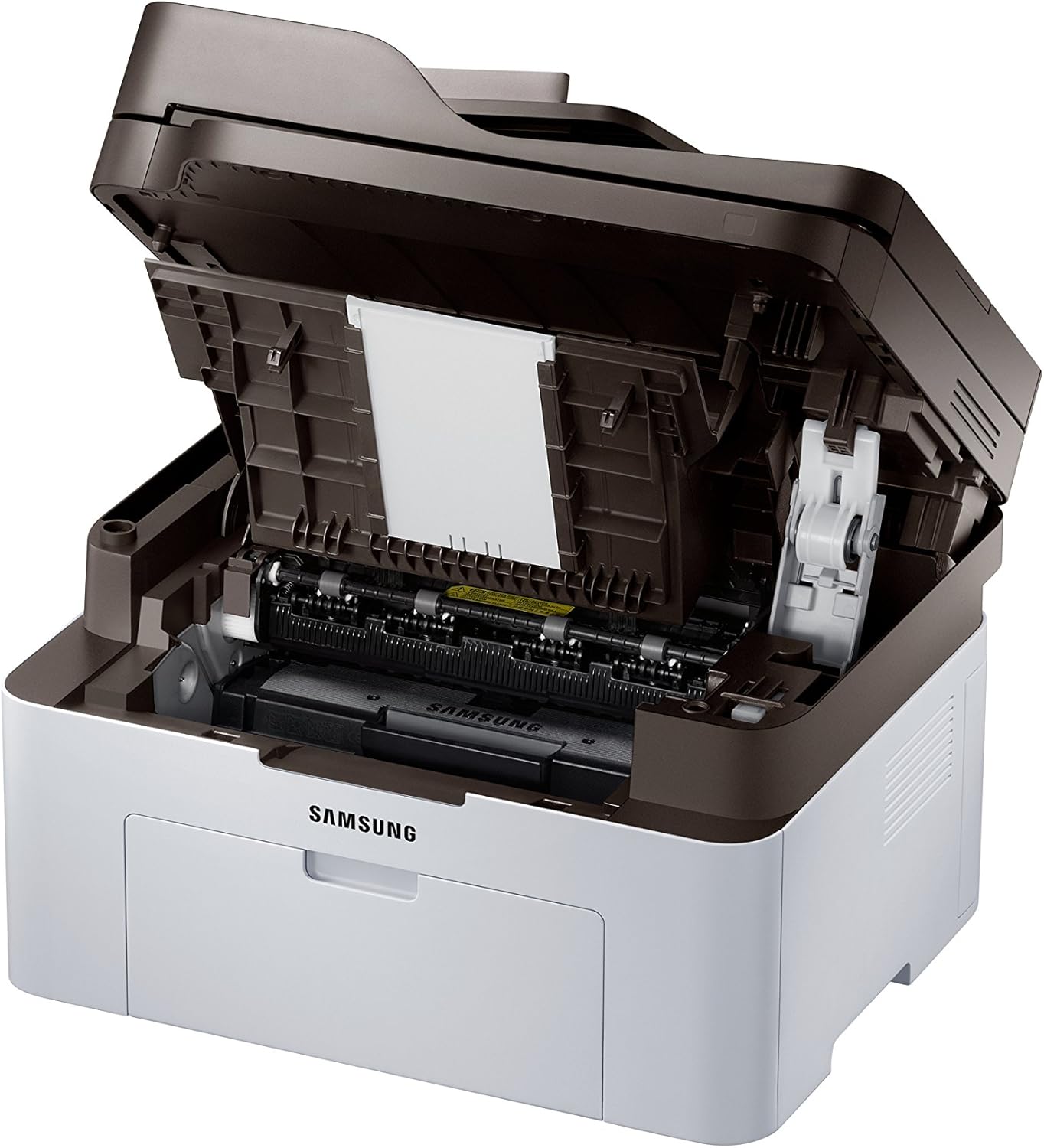
圖2.1: Front cover open, revealing the toner cartridge slot for installation or replacement.
2.4 軟體安裝和連接
- Insert the provided installation CD into your computer's CD-ROM drive, or download the latest drivers from the Samsung support web地點。
- 請依照螢幕上的指示安裝印表機軟體。
- For wireless setup, follow the prompts to connect the printer to your Wi-Fi network. The printer supports NFC for easy pairing with compatible devices.
- For USB connection, connect the printer to your computer using a USB cable (not always included).
3. 操作說明

圖3.1: 有角度的 view showing the control panel with display and function buttons.
3.1 列印文檔
- 請確保印表機已開啟並連接到您的電腦或網路。
- 將紙張裝入進紙匣。
- 在電腦上,開啟您想要列印的文件。
- 選擇 列印 從應用程式的選單中(例如, File > 列印)。
- Choose the Samsung Xpress SL-M2070FW from the list of available printers.
- Adjust print settings as needed (e.g., number of copies, paper size, quality).
- 點選 列印.
3.2 影印文件
- Place the document face-down on the scanner glass or face-up in the automatic document feeder (ADF).
- 在印表機的控制面板上,按下 複製 按鈕。
- Use the navigation buttons to select copy options (e.g., number of copies, darkness, original size).
- 按 開始 按鈕開始復制。
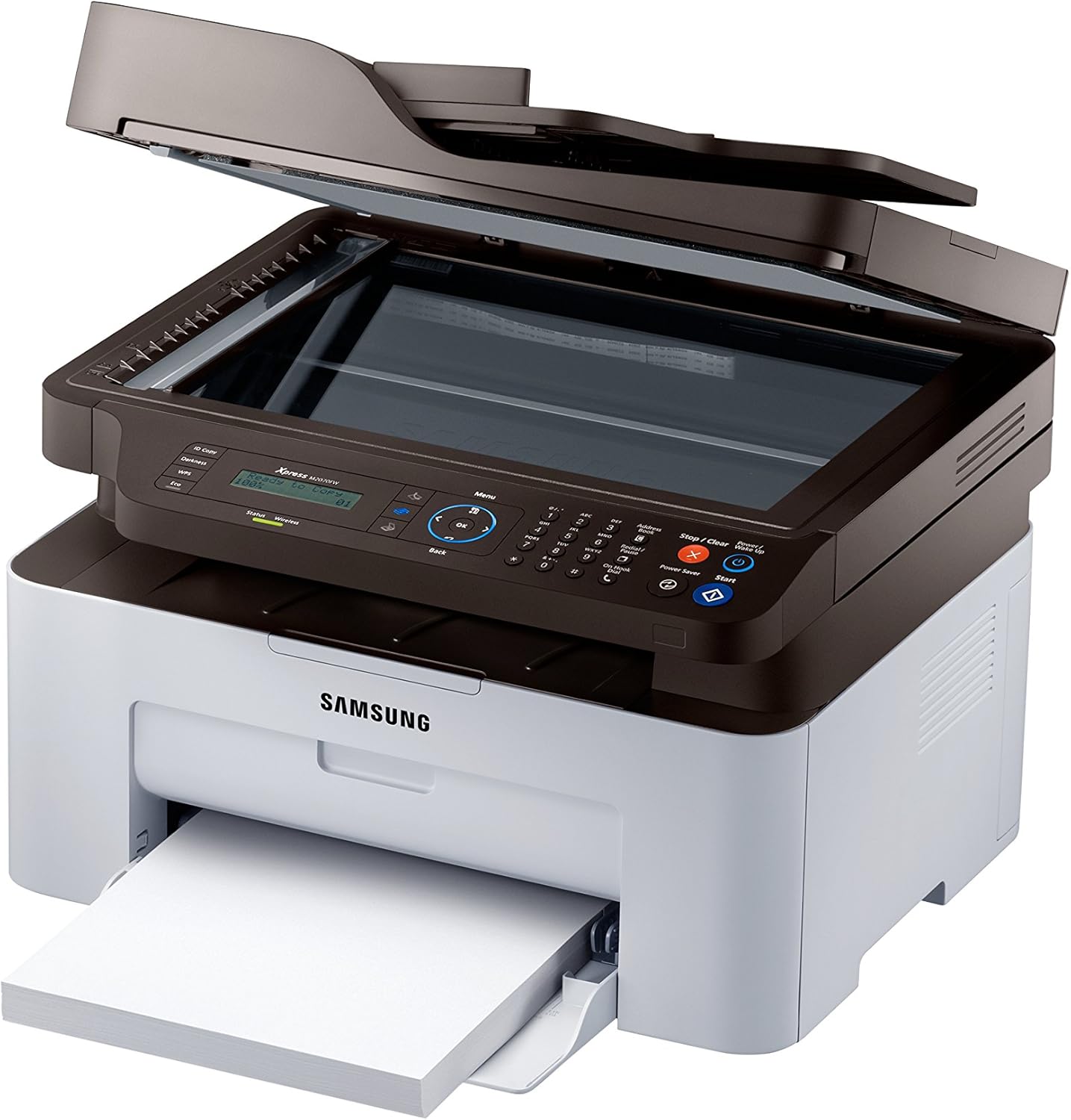
圖3.2: Top cover open, showing the flatbed scanner glass for copying and scanning.
3.3 掃描文檔
- 將文件放在掃描器玻璃板上或自動送稿器中。
- From your computer, open the Samsung Easy Document Creator software or a similar scanning application.
- 選擇 掃描 and choose your desired settings (e.g., resolution, color mode, destination).
- 點選 掃描 啟動該過程。
3.4 傳送傳真
- 將文件放入自動送稿器或將其放在掃描器玻璃板上。
- 在印表機的控制面板上,按下 傳真 按鈕。
- 請使用數字鍵盤輸入收件人的傳真號碼。
- Adjust fax settings if necessary.
- 按 開始 按鈕發送傳真。
3.5 Wireless Printing (NFC, Wi-Fi Direct, Google Cloud Print)
- NFC: Tap your NFC-enabled smartphone or tablet to the NFC tag on the printer to establish a direct connection and print.
- Wi-Fi Direct: Connect your mobile device directly to the printer's Wi-Fi Direct network without needing a router.
- Google 雲端列印: Register your printer with Google Cloud Print to print from anywhere using your Google account. Refer to the online manual for detailed registration steps.
4、維護保養
4.1 更換墨盒
- When the toner low message appears on the display, order a new toner cartridge.
- 打開打印機的前蓋。
- 小心地取出舊的墨盒。
- 打開新墨盒的包裝,輕輕搖晃。
- 插入新墨盒直到其卡入到位。
- 關閉前蓋。
4.2 清潔打印機
- 外部的: 用柔軟的無絨布擦拭印表機外殼。請勿使用研磨性清潔劑。
- 掃描儀玻璃: 用軟布輕輕擦拭掃描器玻璃。amp最後用玻璃清潔劑擦拭乾淨。確保沒有殘留物。
- 內部的: Periodically open the front cover and gently remove any paper dust or debris with a dry, lint-free cloth.
5。 故障排除
| 問題 | 可能的原因 | 解決方案 |
|---|---|---|
| 印表機無法開機。 | 電源線未正確連接。 | Check power cord connections to the printer and wall outlet. Ensure the outlet is functional. |
| 紙張卡住。 | Incorrect paper loading; foreign objects in paper path. | Remove all paper from the tray and reload correctly. Open covers and carefully remove any jammed paper or obstructions. |
| 列印品質差。 | Low toner; dirty print head/drum; incorrect print settings. | Replace toner cartridge. Clean the interior of the printer. Adjust print quality settings in the printer driver. |
| 無法進行無線連線。 | Incorrect Wi-Fi password; printer too far from router; network issues. | Verify Wi-Fi password. Move printer closer to the router. Restart printer and router. Reconfigure wireless settings. |
6. 規格
- 型號名稱: SL-M2070FW
- 功能: 列印、影印、掃描、傳真
- 印刷技術: 雷射(單色)
- 最大列印速度(單色): 20 ppm(每分鐘頁數)
- 最大影印速度(黑白): 14 ppm
- Max Copy Resolution (Black & White): 600 dpi
- 掃描儀類型: 平板
- 連接技術: USB, Wireless (Wi-Fi, NFC, Wi-Fi Direct, Ethernet)
- 硬件接口: 乙太網路、USB
- 內存存儲容量: 128MB
- 耗電量: 50 瓦(運轉功率)
- 產品尺寸: 15.98 x 14.16 x 12.15 英寸
- 物品重量: 18.92 磅(8.6 公斤)
- 包含的組件: Scanner Glass, Fax Machine, Paper Tray
7. 保固和支持
Your Samsung Xpress SL-M2070FW Multifunctional Printer comes with a limited warranty. For detailed information regarding warranty terms and conditions, please refer to the warranty card included with your product or visit the official Samsung support web地點。
For technical assistance, driver downloads, or further support, please visit the Samsung support web網站或聯繫他們的客戶服務。
- 在線支持: www.samsung.com/support/
- 保修類型: 有限保固